It is a good idea to create a safe point before making significant changes to a project. Macaly AI provides several different ways to protect or restore your work.
Restore an earlier version
If a change does not work as expected, you can return to an earlier version of the project. Macaly AI provides version history, and earlier agent responses may also provide a Restore this version option.
Restoring an earlier version allows you to roll the project's code back to the state it was in at that point. This can be particularly useful if several changes were made and simply asking the agent to undo them individually would be difficult.
Restoring via Version history
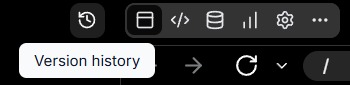
Macaly AI toolbar with the Version history control highlighted.
Restoring from a previous chat

Chat action menu showing Report issue, Copy, Restore this version and Duplicate.
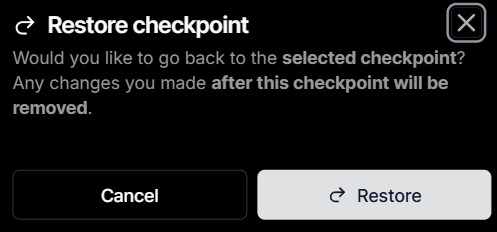
Restore checkpoint confirmation with Cancel and Restore buttons.
Warning: These restore points are connected, so if you restore back to a previous prompt using the Restore this version option, the snapshots in Version history will also be reverted to this previous state.
This means it would not be possible to simply swap back and forth between the old and newer versions of the site.
Note: If you may need to return to the current version later, create a duplicate or variant before restoring an older version. This gives you a separate fallback even if later restore points are removed.
Before making any major changes
Before making a significant change to your project, consider creating a staging site known as a Variant or duplicating the whole project.
Creating a Variant (staging site)
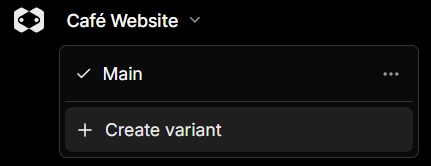
Project variant menu showing Main and the Create variant option.
If you want to experiment with a significantly different version of your website, Macaly AI also supports variants. A variant creates a separate version of the project's code and conversation, allowing you to experiment without immediately replacing the existing version.
For example, you could use a variant to test:
- A completely new homepage
- A dark theme
- A different navigation structure
- A redesigned pricing page
If the new version works better, that variant can later be published.
You can also easily republish to a different variant. This can be useful for making timed changes to the site and then swapping back to the original version when the event is over.
Duplicate the project
Before trying something substantial, consider creating a duplicate. We recommend duplicating a project when it is in a good working state so that you have a fallback if a later change does not work as expected.
A duplicate can be particularly useful before:
- Major redesigns
- Large structural changes
- Adding complicated features
- Reworking database functionality
- Experimenting with a significantly different approach
Disaster recovery
Under any completed prompt in the chat window, use the Duplicate option from that specific point. It does not need to be the most recent chat.

Completed prompt action menu showing Restore this version and Duplicate options.
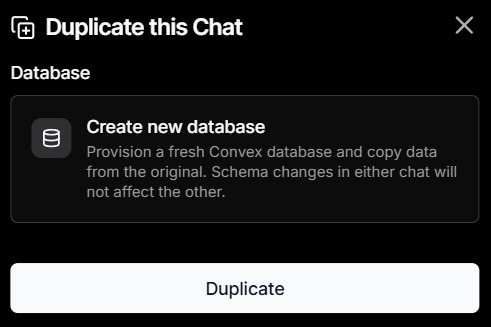
Duplicate this Chat with an option to create a new database and a Duplicate button.
To switch between projects, log in again or select the Macaly AI  icon in the top-left corner.
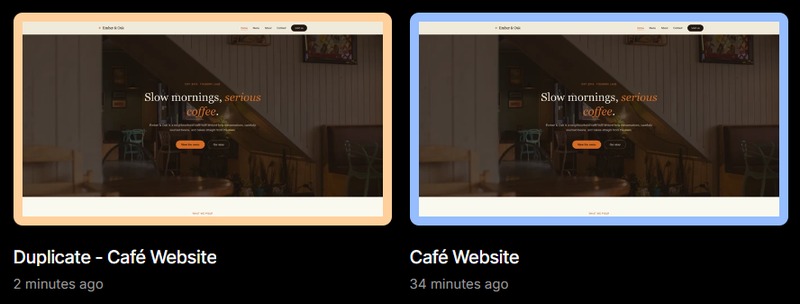
Macaly AI home screen showing the original Cafe Website project and a duplicate copy.
You can also duplicate a project from the Home screen. Hover over the project, open the three-dot menu and select Duplicate.
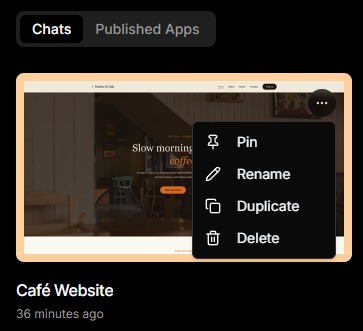
Project card menu showing Pin, Rename, Duplicate and Delete options.
Backing up database information
If your website or application stores information such as enquiries, bookings, users or other records, the Database requires separate consideration.
From the Database tab, Macaly AI provides Export and Import options.
- Export downloads a ZIP snapshot containing the database tables and rows.
- Import restores a previously exported snapshot.
Important: Importing replaces the existing database contents and cannot simply be undone, so export the current database before restoring an older copy.
A database export contains the database table data. Files uploaded or stored by the application, such as images and documents, are not included in that database ZIP.
For projects containing important customer or business information, consider exporting a database snapshot before significant changes.
If you have any questions on the above, please do not hesitate to 'Open a Ticket' and we will be happy to advise further.