Check your website before publishing
Before publishing your website or app, take some time to review and test the finished project.
In particular, check:
- Navigation and menus
- Desktop layout
- Mobile layout
- Contact details
- Buttons and links
- Contact or enquiry forms
- Images
- Spelling and grammar
- Prices and service information
- Any user accounts or login functionality
- Privacy, cookie or legal information relevant to your website
AI can significantly speed up website creation, but you should still review and test what has been generated before making it publicly available.
Publishing
- Click Publish in the top-right corner of the Macaly AI editor.
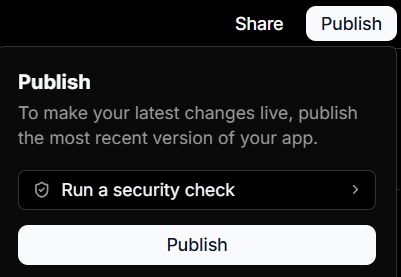
Publish panel showing the Run a security check option and Publish button.
- Macaly AI will build and deploy the latest version.
- Once complete, the published website will be available using its assigned web address.
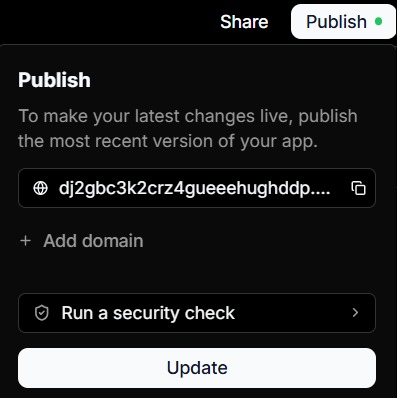
Published project panel showing the generated macaly.app address and Update button.
By default, your project is given a generated Macaly web address. Use the copy button if you need to share this URL.
You can customise the provided Macaly AI URL under Settings > Domains by selecting the pencil icon.
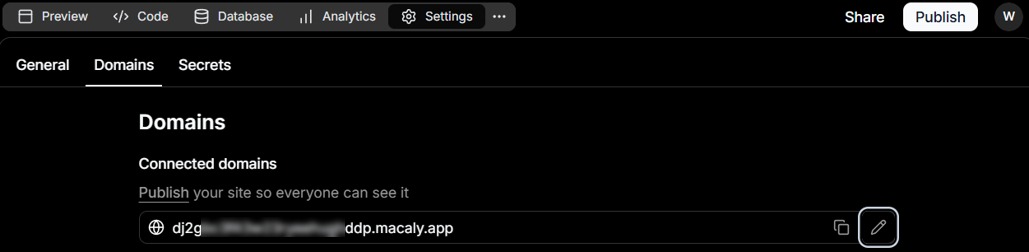
Settings > Domains showing the generated Macaly project URL and pencil edit icon.
Enter your preferred name. Normal domain-name conventions apply, so some special characters such as & cannot be used. Select the tick to save the change.

Editable Macaly project URL field with controls to save or cancel the custom name.
Macaly AI handles the deployment, hosting and HTTPS/SSL side of publishing for you.
Important: The Preview and the published website are separate. Making a change in the editor does not automatically update the public website. You need to publish again when you want those changes to go live.
Want to add your own domain name? Please see the Connecting a domain to your Macaly AI website section below.
Unpublish a project
To unpublish a site, open Settings (the cog icon) and select the General tab.

Macaly AI project toolbar showing the Settings tab.
Scroll down to the Publish section and use the Unpublish button.

Publish settings section showing Published status and the Unpublish button.
Security checks
Under the publishing section, there is an optional Run a security check feature.
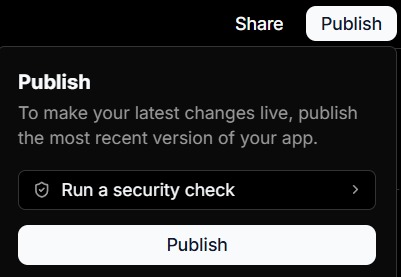
Publish panel showing the Run a security check option and Publish button.
We recommend running the security check before the first publication and again after significant changes. It can flag common areas to review, including visitor-input forms, sign-in or private areas, exposed passwords or personal information, and connected databases or services.
TIP: Treat the security check as an additional safeguard rather than a replacement for your own testing and review.
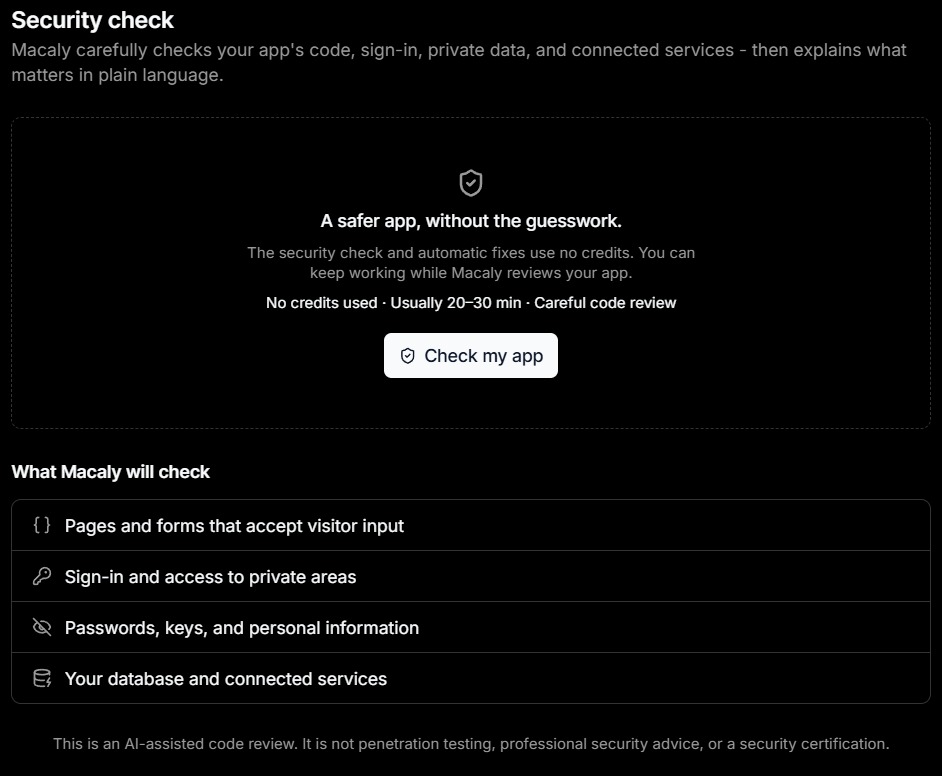
Macaly AI security check screen listing checks for visitor input, private areas, sensitive information and connected services.
Making changes after your website has been published
Your website/app does not become locked after publication. Open the project again and continue working in exactly the same way.
For example:
You can also use Visual edits for individual text, image and layout changes.
Remember to publish again: The changes initially appear in the project Preview. When you are satisfied with them, click Update to deploy the new version to your live website. Visitors continue seeing the previous published version until you publish the new changes.
This separation gives you the opportunity to review changes before exposing them to visitors.
Note: Before making any potential major change, it is recommended to have a backup point. Please see the Backing up or restoring a Macaly AI project knowledge base article before proceeding.
If you have any questions on the above, please do not hesitate to 'Open a Ticket' and we will be happy to advise further.