There are two main ways to make changes to an existing project:
- Chat with the AI agent
- Use Visual edits
Visual edits or an AI prompt? Use Visual edits when you know precisely what element you want to change. Use an AI prompt when you want to create something new, redesign a larger section or make a change that affects several parts of your website.
Editing with prompts
Simply continue the conversation in your project. For example:
Because the conversation belongs to the same project, Macaly AI remembers the previous work and can make the requested change in context.
Using Visual edits

Visual edits toolbar showing Edit design, Text, Annotation and Comment tools.
For smaller or targeted changes, use the Visual edits toolbar at the bottom of the preview page and select the element you want to modify. Visual editing is element-based: clicking a heading, paragraph, image, button or section opens the settings available for that particular element.
Edit design
Click on a section (highlighted in blue) you want to target for a change and add a prompt.
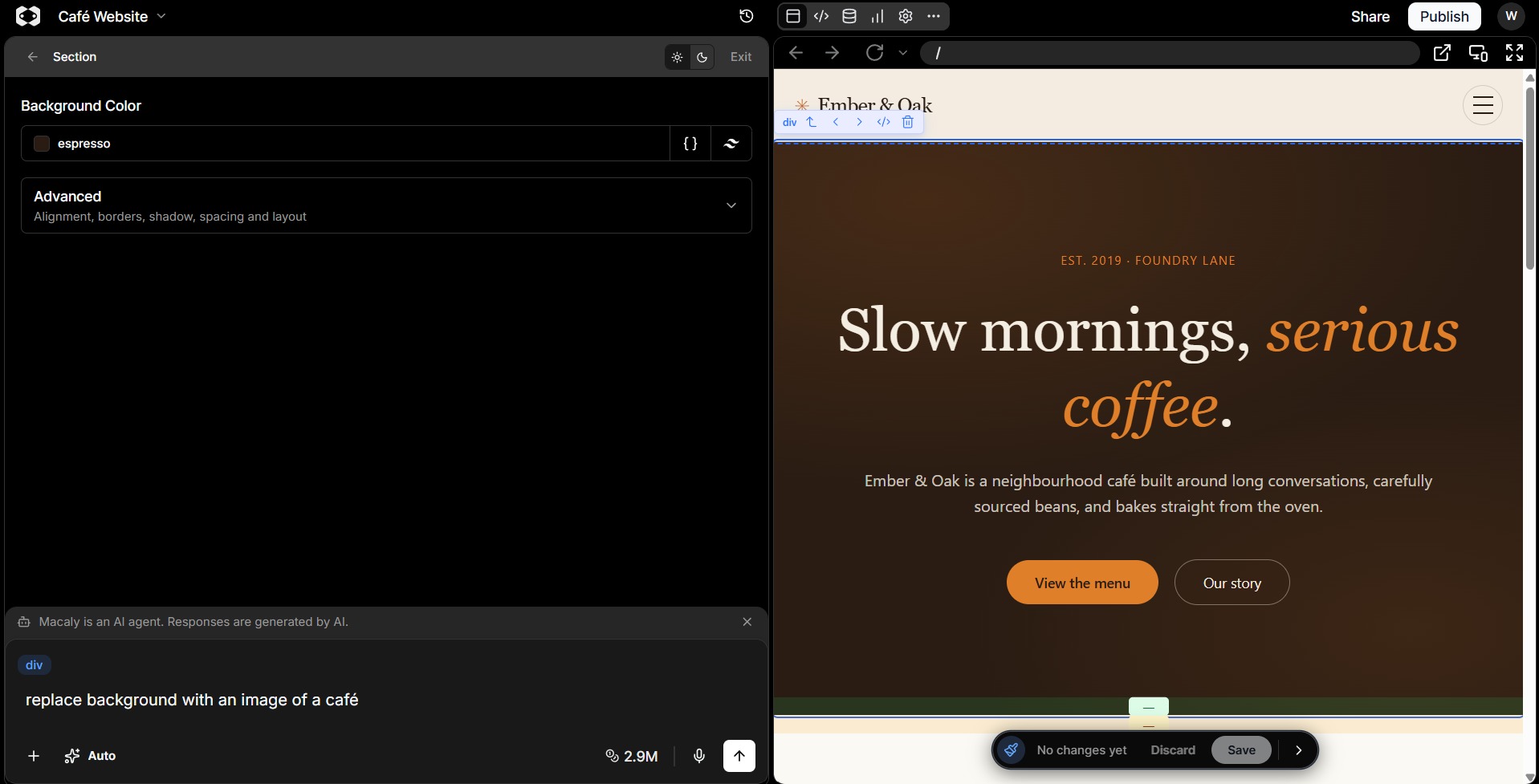
Macaly AI editor with a website section selected for an Edit design prompt.
Example: change the background image of a section.
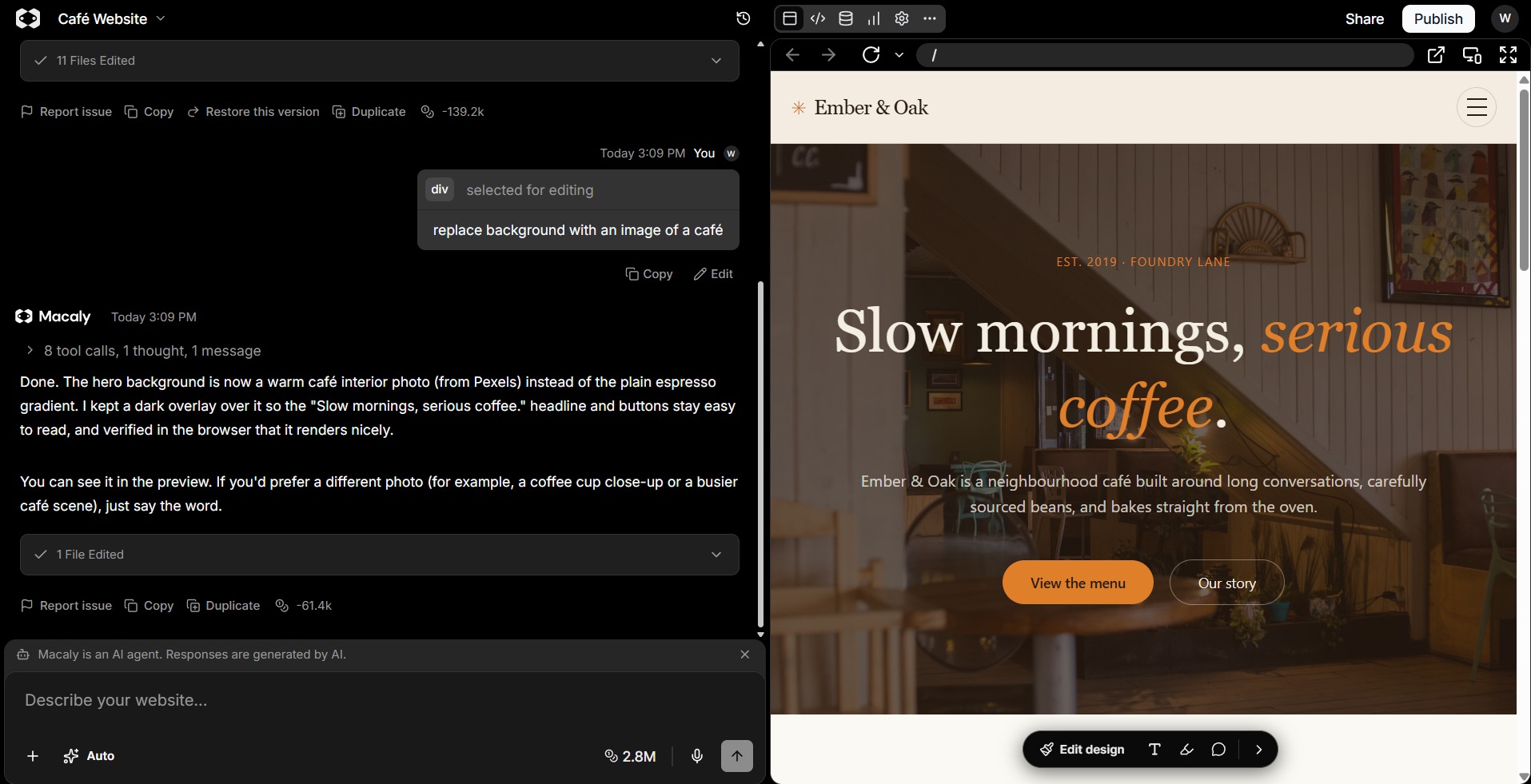
Macaly AI editor showing the section after a background image change.
Text editor
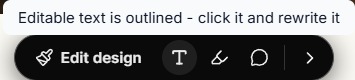
Visual edits toolbar with the Text editing tool selected.
Select (highlight in blue) a section of text you want to change.
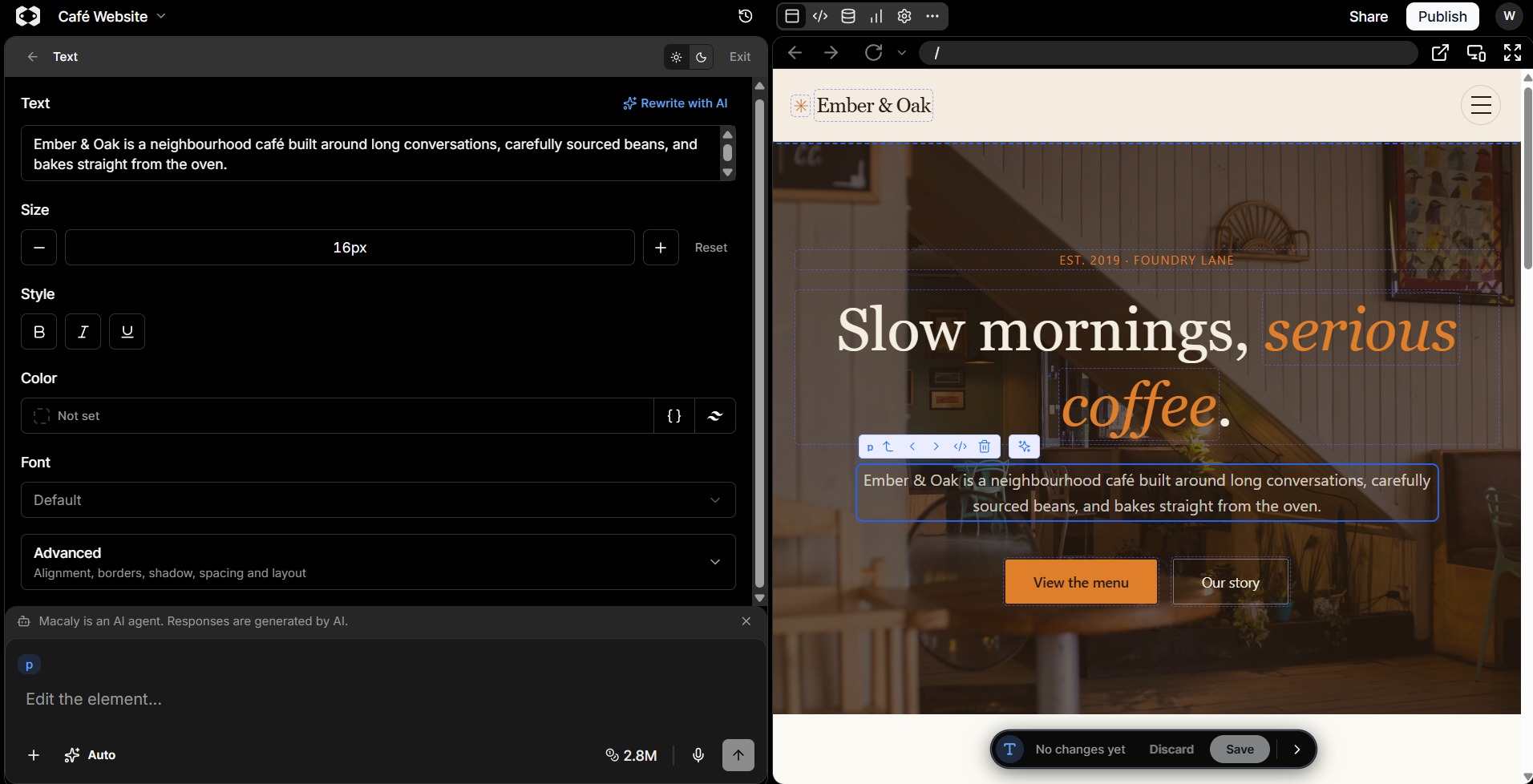
Macaly AI editor with a text element selected and text editing options open.
You can manually add your own text, change the style and ask the chat to regenerate or prompt for any changes you would like.
Annotation (Pen icon)
Visual edits toolbar with the Annotation pen tool selected.
Circle a section/item you want to change and add a prompt.
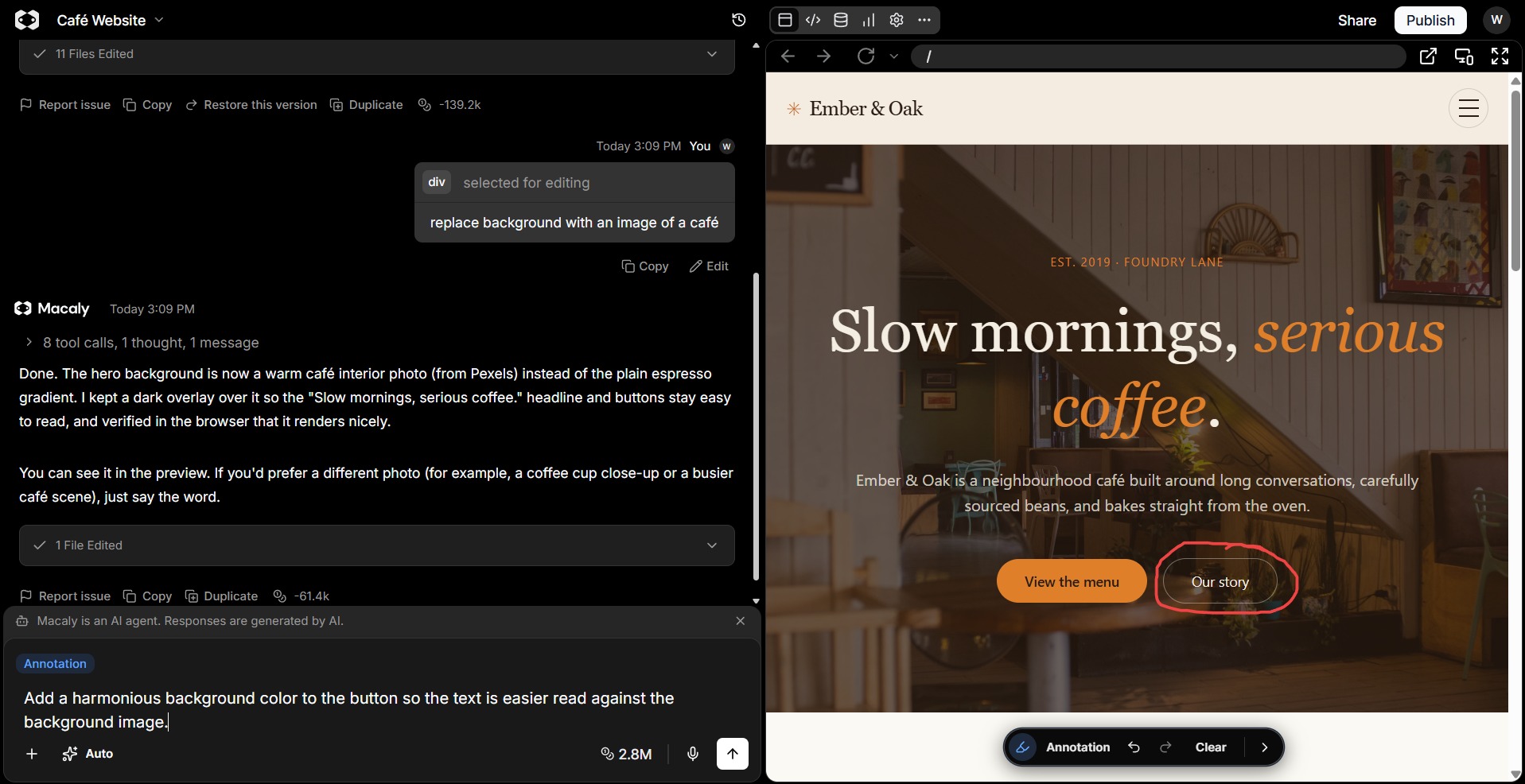
Macaly AI editor with an annotation circle around a button and a related prompt.
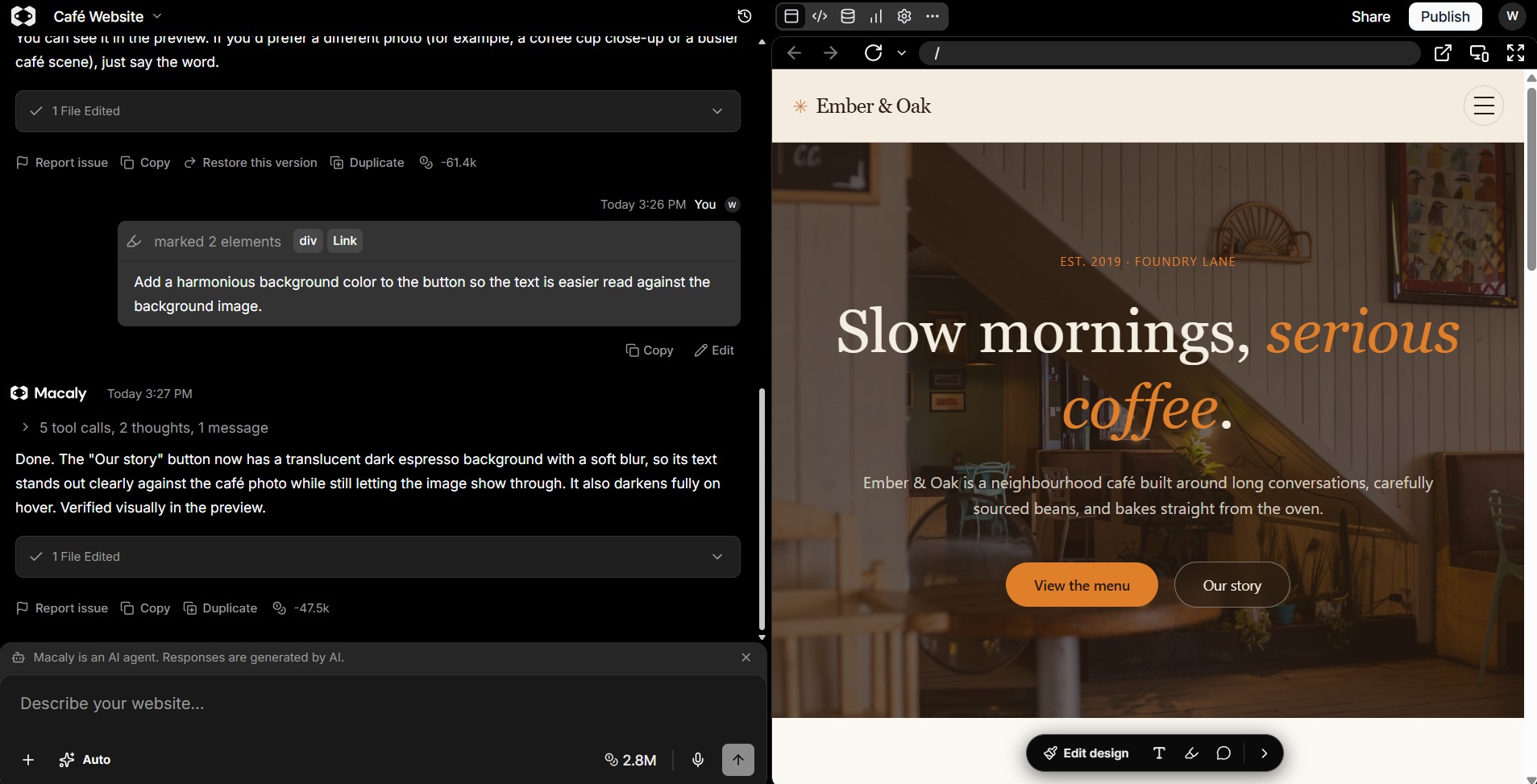
Macaly AI editor showing the updated button after the annotation-based change.
| Before | After |
|---|---|
 |
 |
Add a comment
Comments are especially useful when a project is being reviewed by more than one person. They keep feedback attached to the exact part of the page it relates to, so colleagues do not have to describe which button, image or section they mean. This can make design reviews, copy approval and handovers clearer and easier to follow.
For example, a reviewer can leave a question or suggested change on a specific element, another team member can reply, and once the change is agreed the comment can be used as context for a Macaly AI prompt. Use comments for discussion and review; use a prompt when you are ready for Macaly AI to make the change.
Important: Avoid placing passwords, API keys or other sensitive information in comments.
Visual edits toolbar with the Add a comment tool selected.
Select Add a comment from the Visual edits toolbar, then click the relevant area of the page and enter your feedback in the comment box.
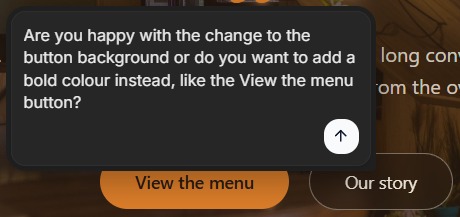
Comment box pinned beside the Our story button with reviewer feedback.

Comment marker displayed on the Our story button.
Select an existing comment marker to open the thread. From there, review or reply to the feedback, or use the comment as context for a prompt when you are ready to make the requested change.
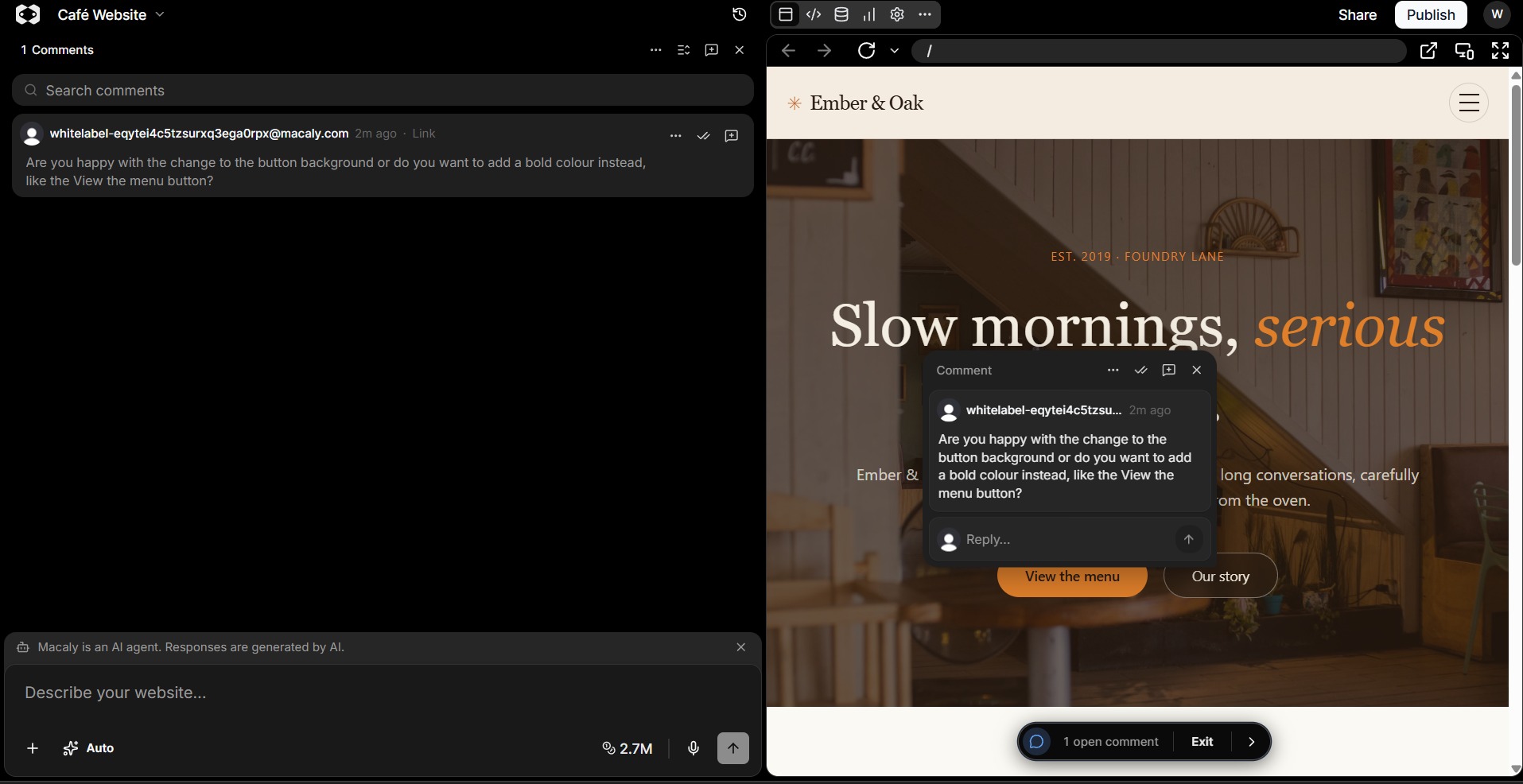
Macaly AI editor with a page comment open over the website preview.
Changing the view
Macaly AI projects are responsive by default, meaning the layout adapts to different screen sizes such as phones, tablets, laptops and large desktop monitors. You do not need to build a separate mobile version of the project.
You can change the view from a desktop version to a mobile version of the site, so you can easily see how your changes, etc. look for both types of devices.
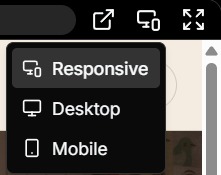
Preview device selector showing Responsive, Desktop and Mobile options.
The default preview mode is Responsive. You can use the device selector to switch between Responsive, Desktop and Mobile, or resize the preview pane manually.
When resizing manually, hover between the chat editor and preview until the cursor changes to a horizontal resize arrow, then click and drag.
TIP: Keep an eye on the navigation menu for when it changes from the desktop version to the mobile version.
| Desktop | Mobile (hamburger menu icon) |
|---|---|
 |
 |
Default responsive view
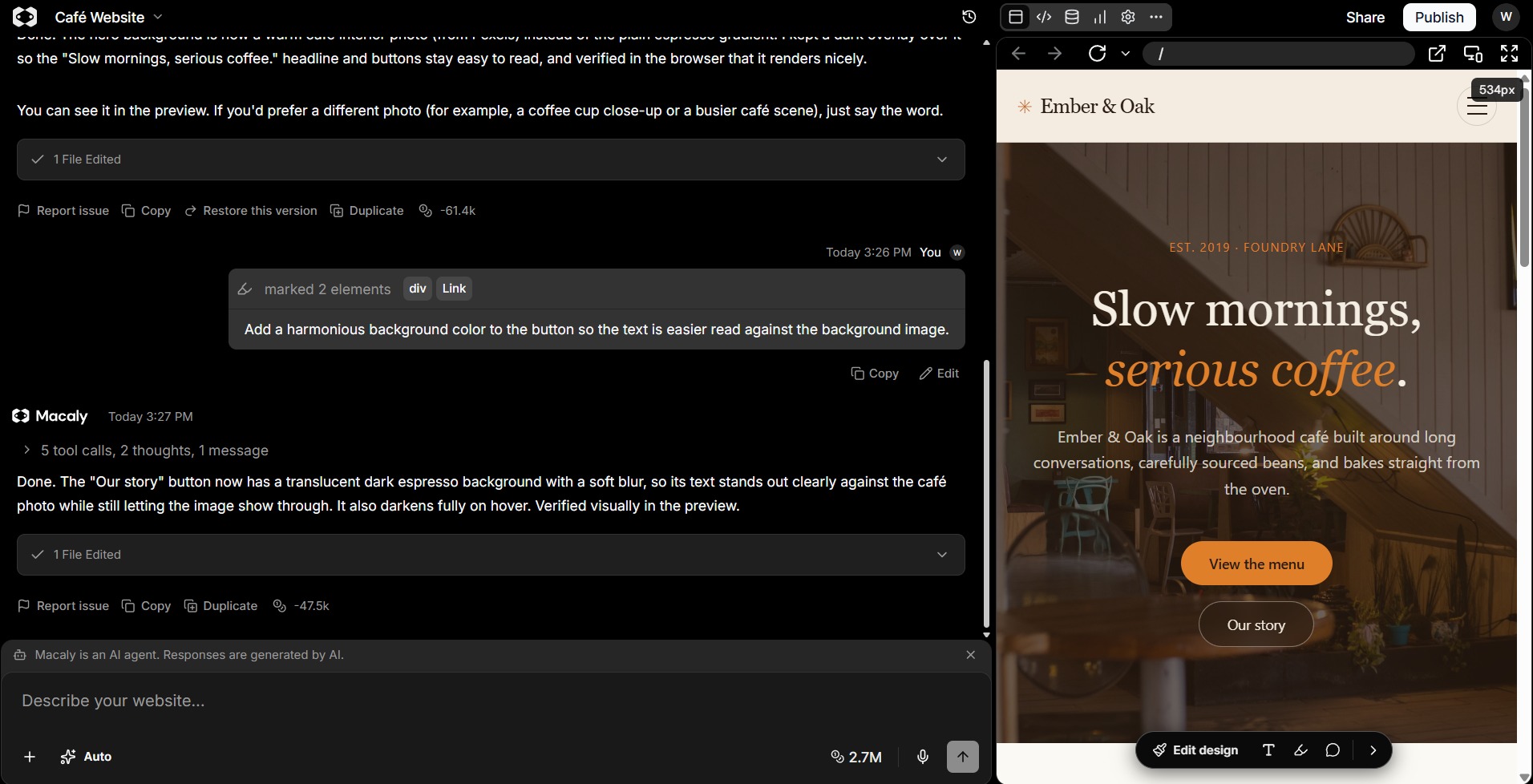
Macaly AI editor in responsive preview mode with a narrow website preview.
Desktop view
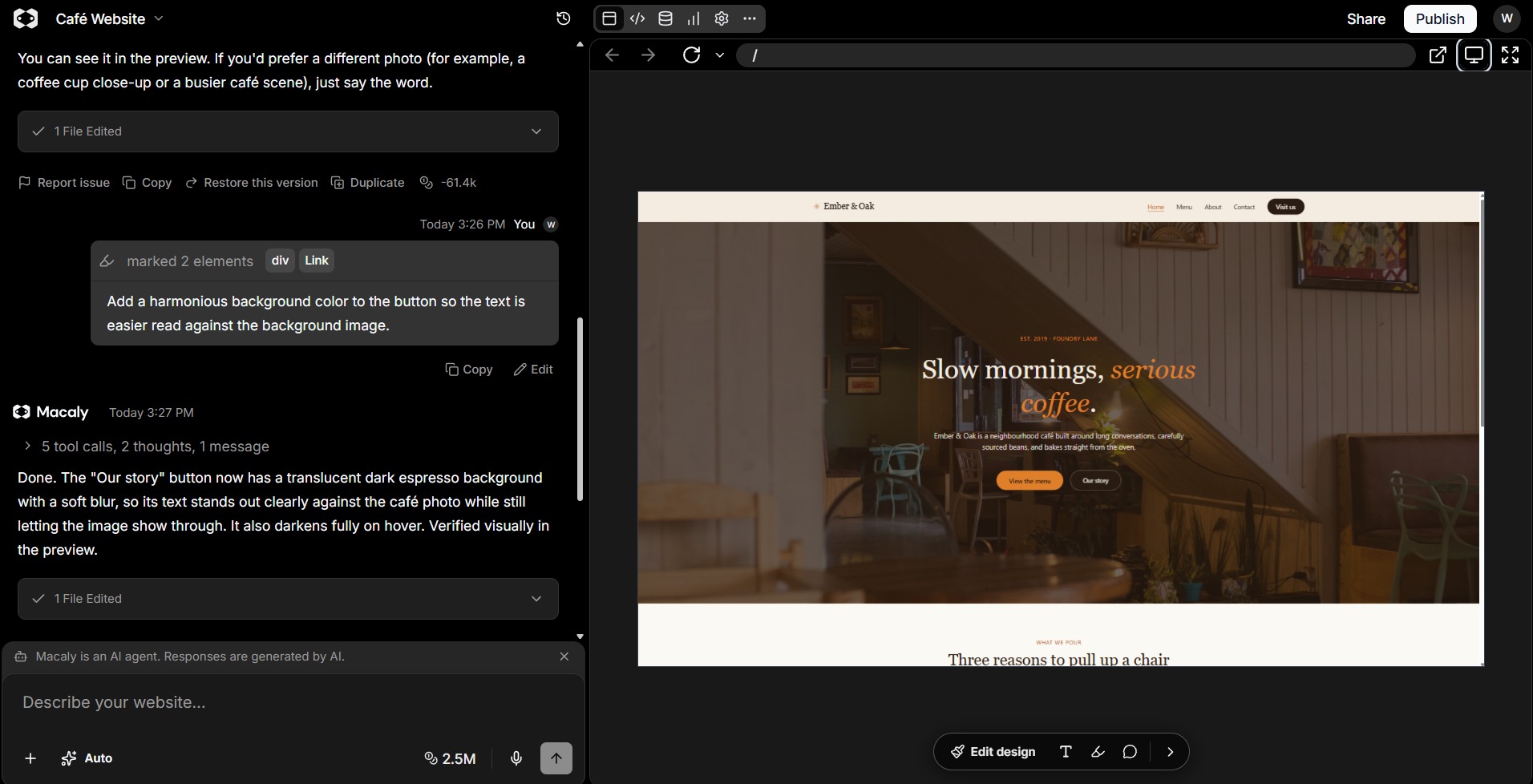
Macaly AI editor in desktop preview mode with a wide website preview.
Mobile view
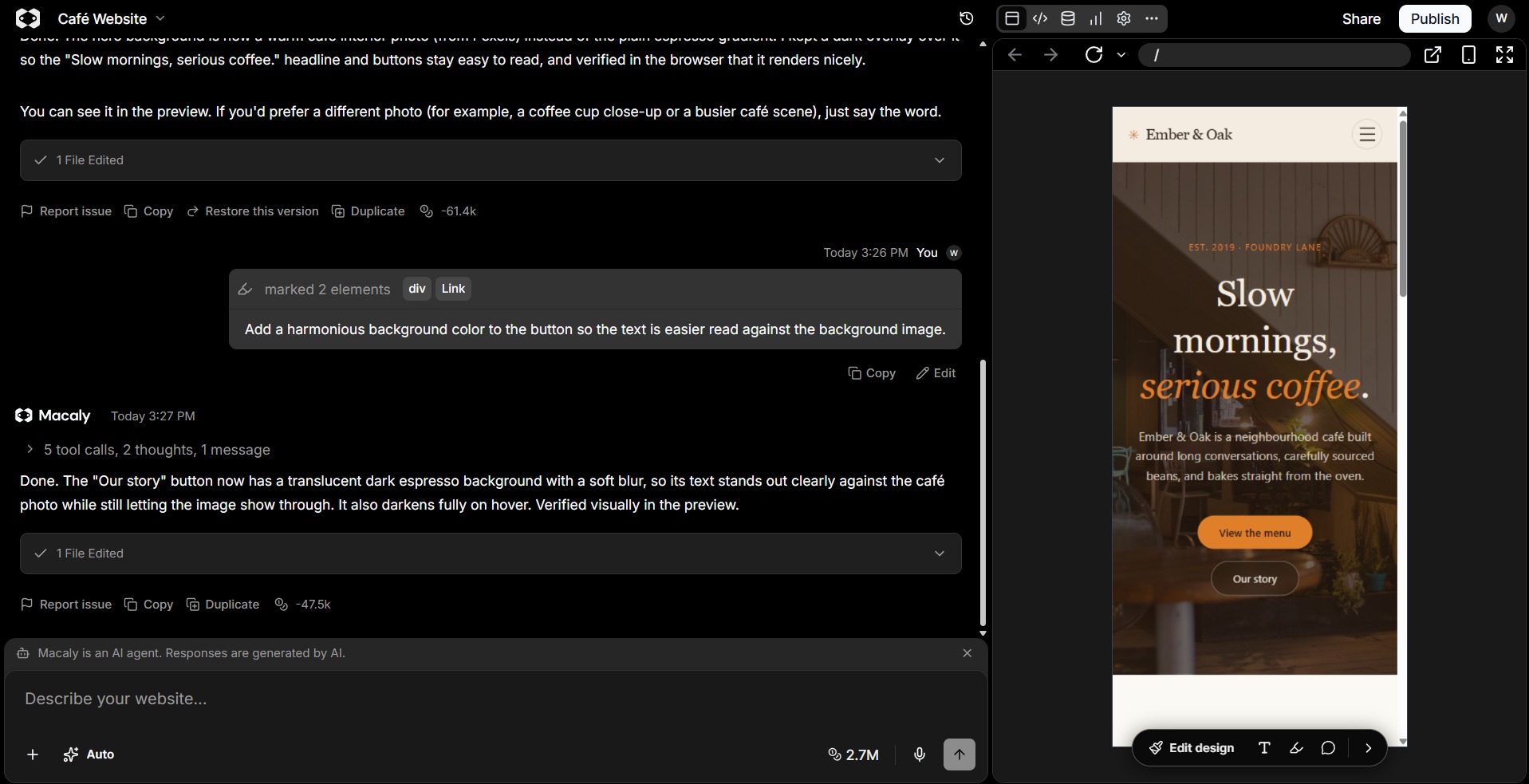
Macaly AI editor in mobile preview mode showing a phone-width layout.
While the themes are responsive, you can prompt to target a mobile version of the site.
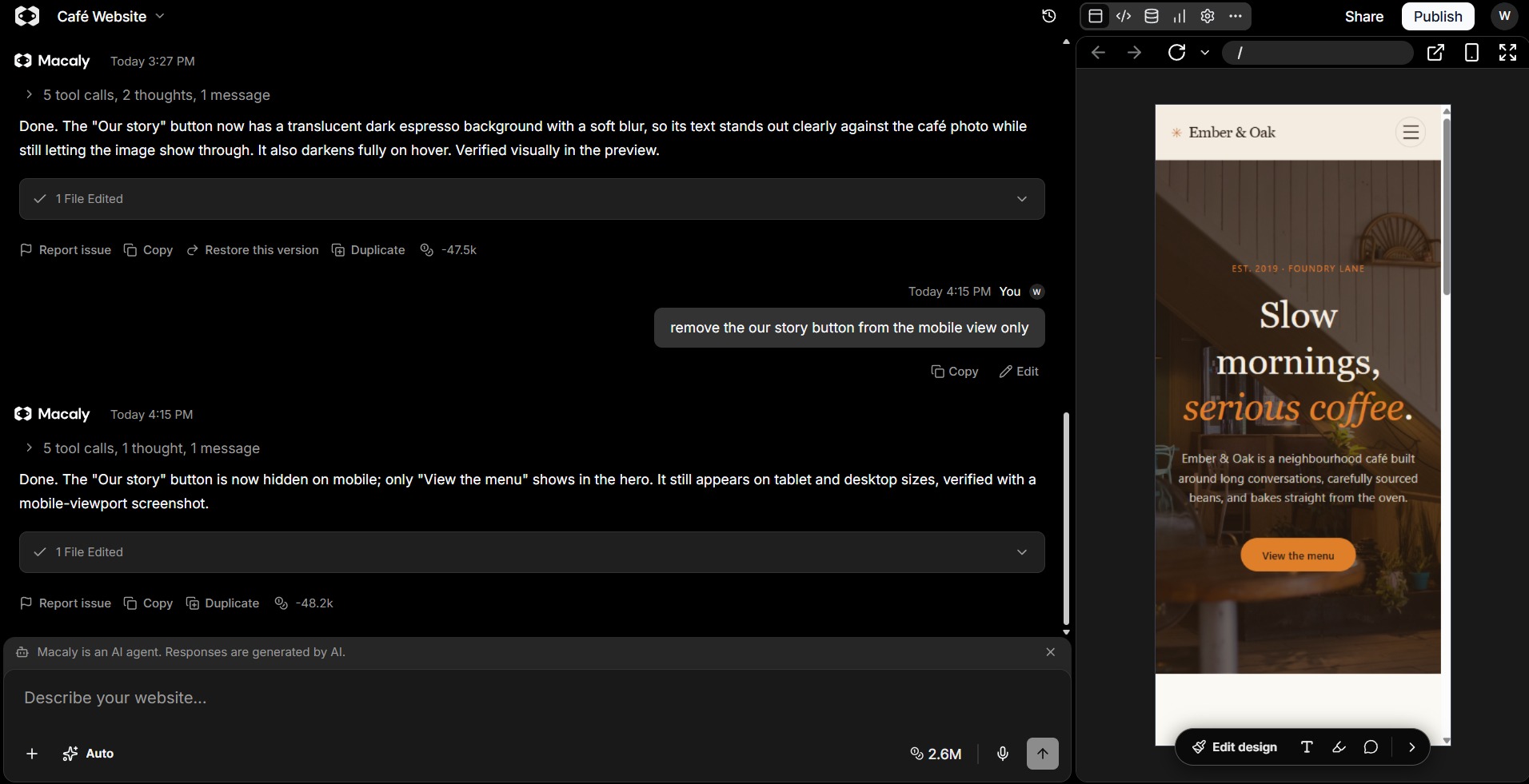
Macaly AI editor showing a prompt that targets a mobile-only button change.
The button is still on the desktop views of the site.
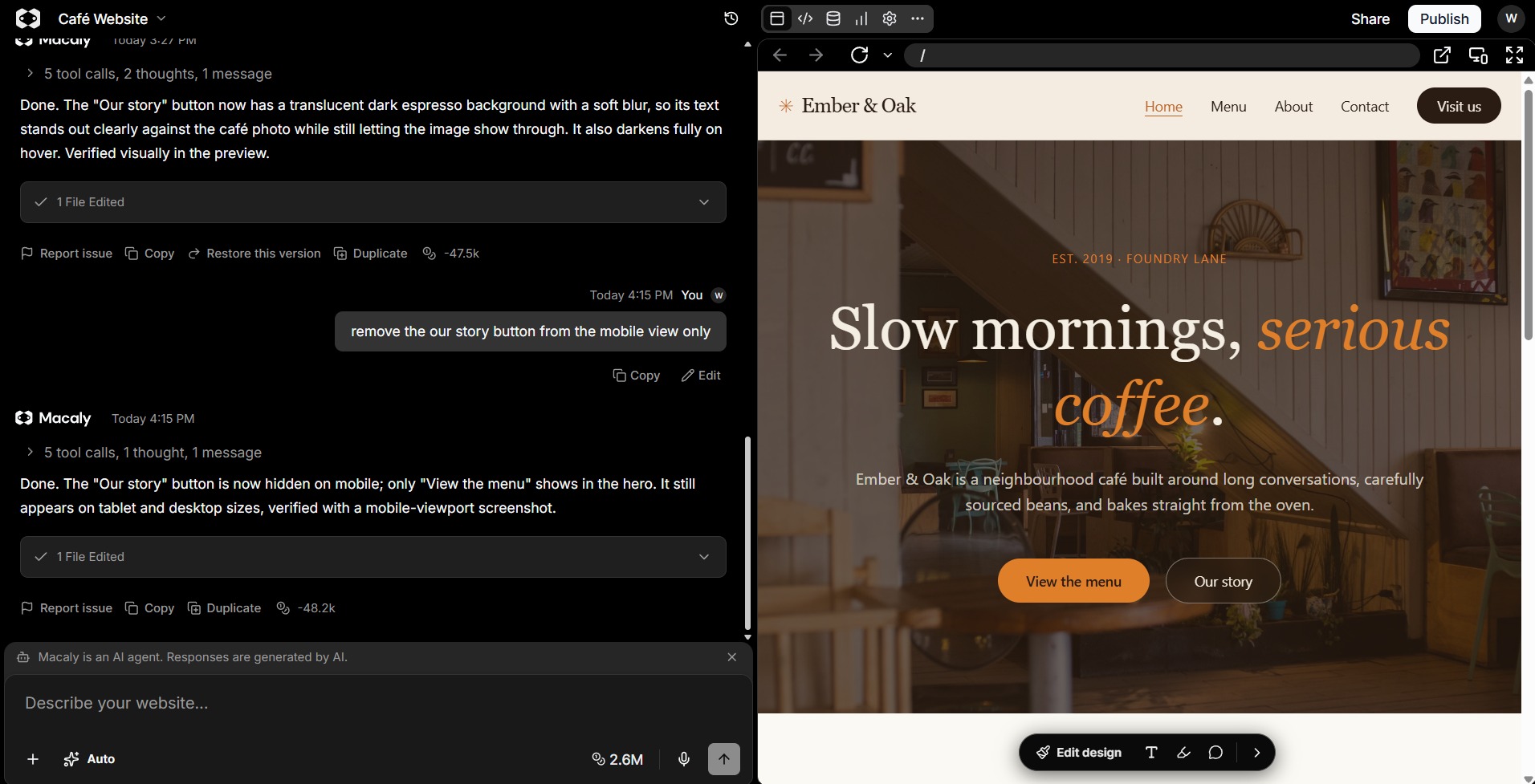
Desktop preview showing the original button remains unchanged after a mobile-targeted edit.
TIP: Preview modes are useful during editing, but before publishing, we also recommend opening the finished site on at least one real phone and desktop browser to confirm navigation, forms and interactive elements behave as expected.
Note: Before making any potential major changes to your site, please review the “Backing up or restoring a Macaly AI project” Knowledge base article.
If you have any questions on the above, please do not hesitate to 'Open a Ticket' and we will be happy to advise further.