Log in to your LetsHost Client Area and use the blue navigation bar along the top to click Services > My Services.
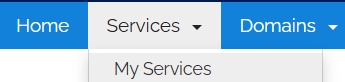
LetsHost Client Area navigation showing Services and the My Services option.
Search/Filter for your Macaly AI service and click the green Active button.
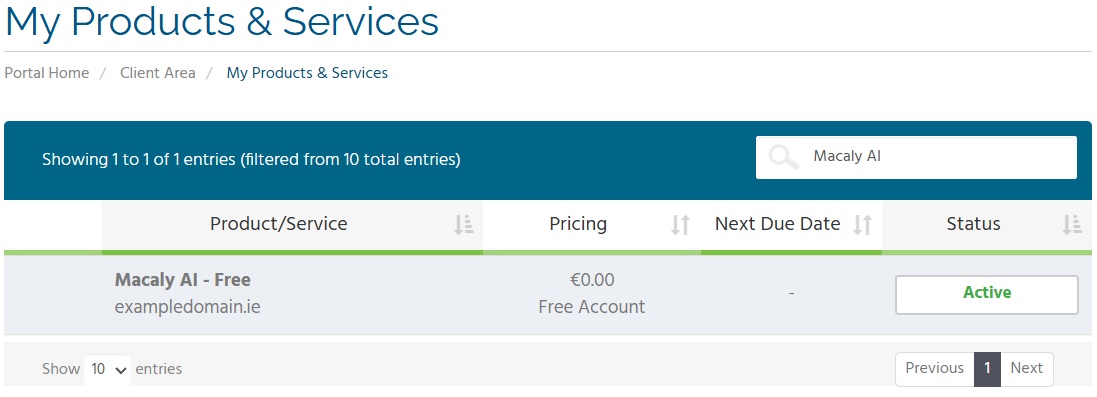
LetsHost My Products & Services page showing an active Macaly AI service.
Click Log in to Workspace to launch the Macaly AI builder in a new tab.
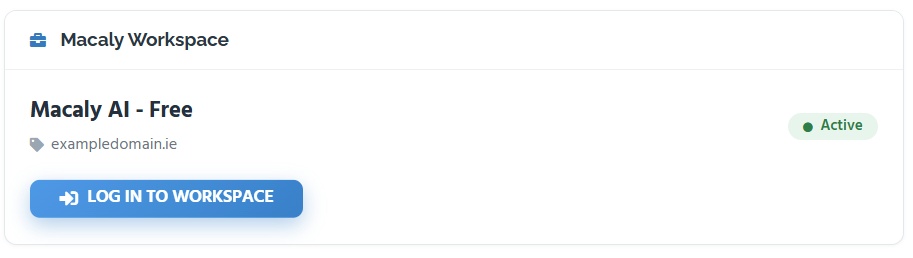
Macaly Workspace service panel showing the Log in to Workspace button.
If it is the first time you are opening the Macaly AI builder, there will be a pop-up to set up your workspace.
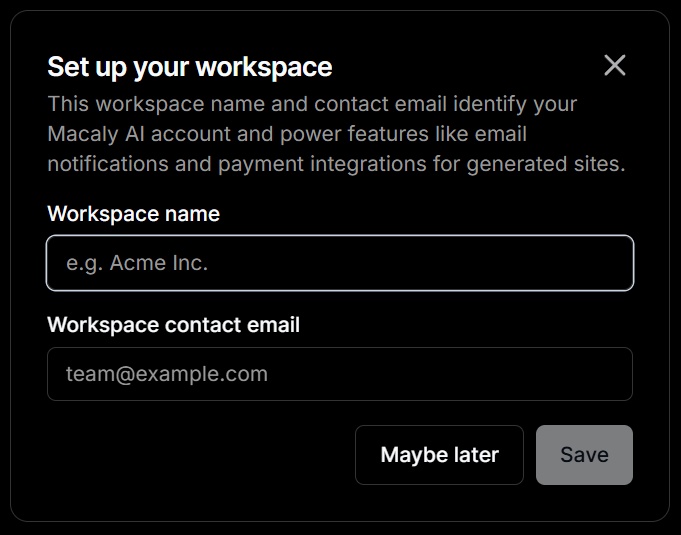
Macaly workspace set up with fields for workspace name and contact email.
Fill in the details and click Save to get access to the main prompt box and get started.
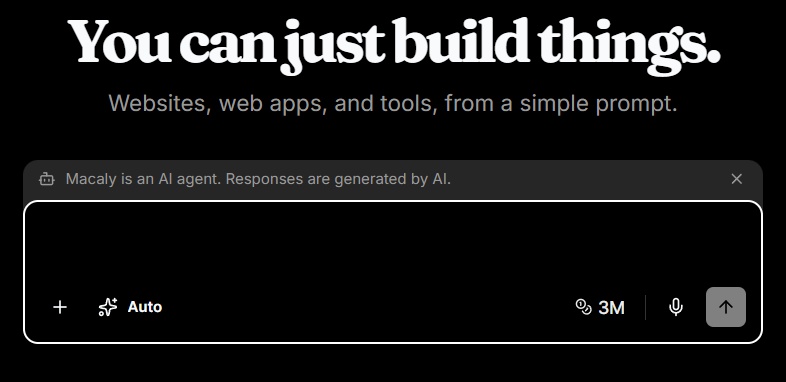
Macaly AI home screen with the main prompt box ready for a new project.
This is where you tell Macaly AI what you would like to create.
Each Macaly AI project is represented by its own chat. The chat keeps the context of what you have already built, allowing you to continue adding and changing features without having to explain the entire project again each time.
Note: If you would like a web developer, colleague or another authorised user to access the Macaly AI builder on your behalf, you can add them as a "User" on your LetsHost account.
See our How to add a User to your LetsHost Account knowledge base article for step-by-step instructions on adding another user to your account.
Managing your Macaly AI projects
To return to the Home page, log in again or select the Macaly AI  icon in the top-left corner.
The Macaly AI home screen displays your projects as cards. You can use this area to find projects you are currently developing, projects that have been published and create a new project by entering a prompt into this chat.
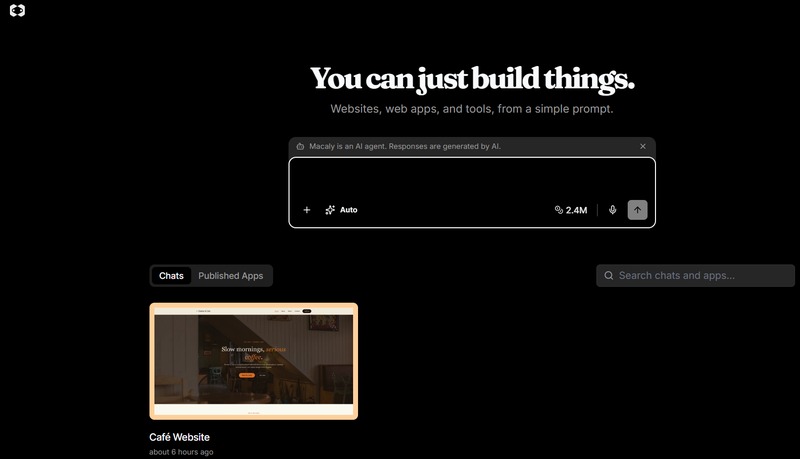
Macaly AI home screen showing a Cafe Website project card.
If you have any questions on the above, please do not hesitate to 'Open a Ticket' and we will be happy to advise further.