If you have a domain name where you would like when someone goes to this domain it will automatically take them to a different domain/website, this is known as a domain redirect.
For example, your main website is https://letshosttutorials.ie, however, you also have a domain name for letshosttutorials.com, you can send/redirect anyone who goes to https://letshosttutorials.com automatically to your main site on https://letshosttutorials.ie.
First login to your LetsHost Client Area
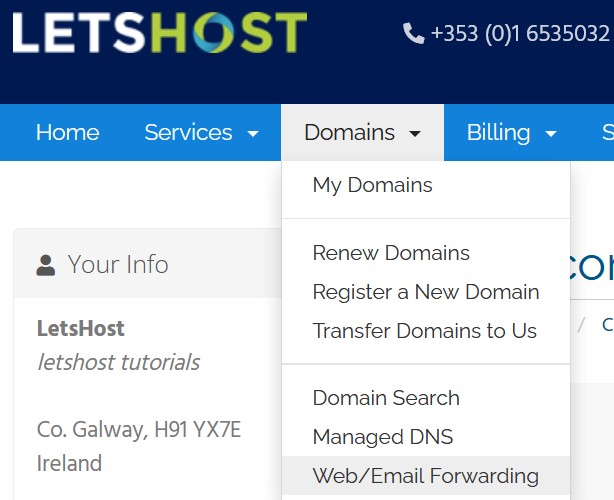
Using the top navigation bar, click Domains > Web/Email Forwarding
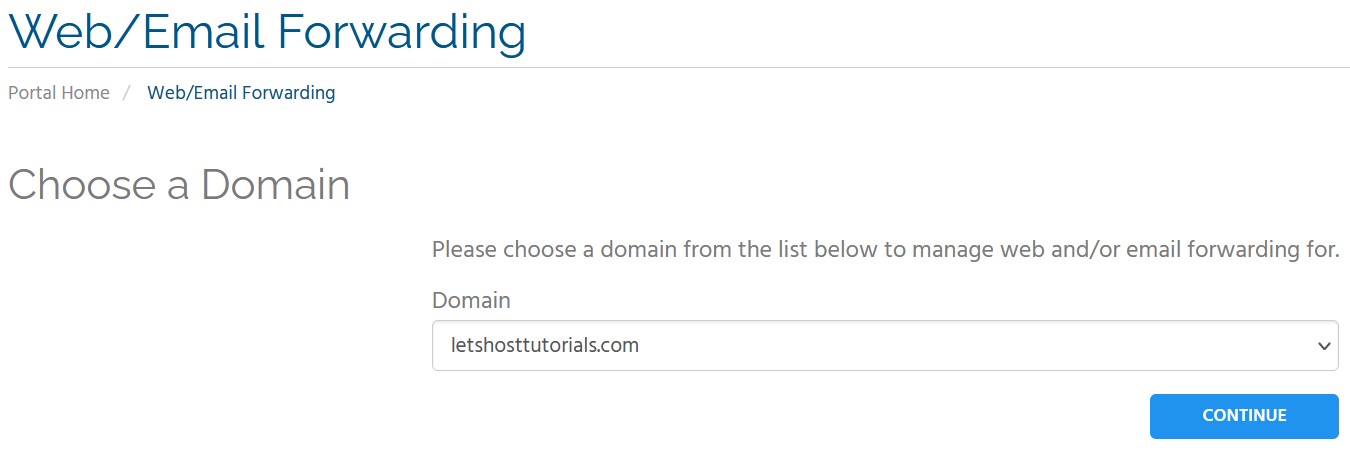
Click on the dropdown list and choose the domain name you want the redirect to occur on then click continue.
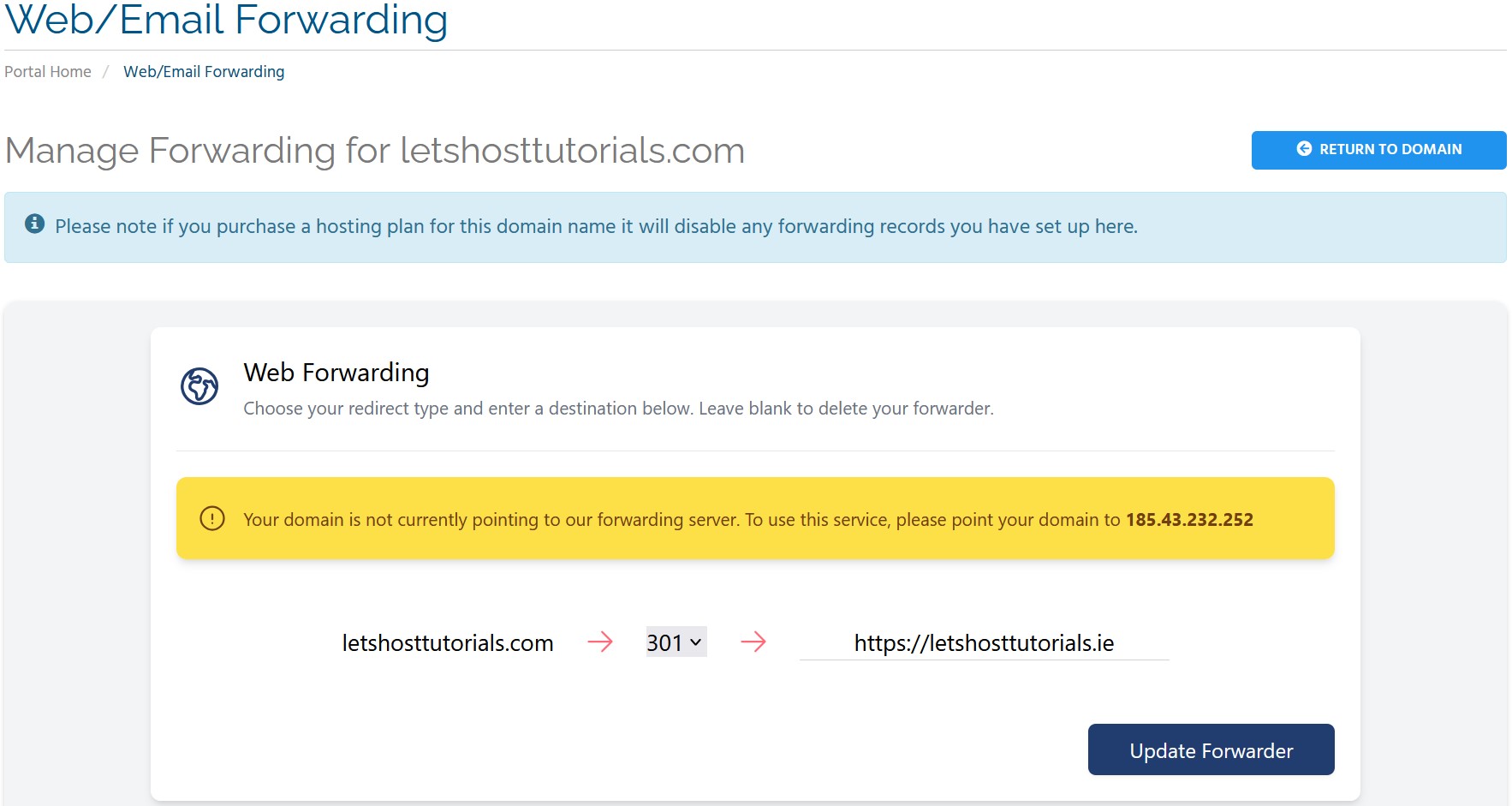
You can then choose either “301” or “302”
A 301 redirect can be considered a “permanent” redirect, this will save the redirect in a persons browser so the main site will load faster on subsequent visits. This is generally the recommended setting.
A 302 redirect can be considered a “temporary” redirect, this will not save the redirect in a persons browser (this will be slower than the above option as the lookup needs to be done each time), but if you do make a change to where the redirect goes it will be picked up immediately. This option is useful to be able to use your actual domain name and redirect to your social media for example. At the same time, you get your main website built/designed, so when your site is ready you can just change to a 301 redirect or remove/edit the redirect to suit your needs.
Enter the full URL you want your domain to redirect to in the text box and click ‘Update Forwarder’ to save your settings.
Lastly, we will need to point the domain to the forwarding server at 185.43.232.252
If the domain you want to redirect is not currently in use (i.e. does not have a DNS configuration or has email accounts etc.) then you can use the DNS Manager in your Client Area to add the 185.43.232.252 record (replacing the default IP of 80.93.28.167) as per: How do I edit the DNS record for my domain?
If you have any questions on the above or are unsure about changing the DNS please do not hesitate to Open a Ticket and request the change and we will be happy to get it configured for you.