You receive a bunch of junk mail from a spammer so you block their email address, this works for a time until the spammers simply change the email address they are sending from and you start to receive all the junk mail until you block the new address and then this cycle continues to repeat.
cPanel provides custom filtering options to better target spam mail and to automatically filter them, for example, if an email even mentions the word "bitcoin", just delete it.
First, you will need to Log In To cPanel under the "Email" section, there are three options for configuring email filtering.
1. Spam Filters (basic filtering)
This section will allow you to turn on the Apache SpamAssassin filter, enable automatic spam mail deletion and configure Allow/Block lists.
For more information on configuring the above, please see: How do I set up spam filtering on my account?
2. Global Email Filters
This section will allow you to apply a custom filter to all email addresses on your account.
Click the 'Create a New Filter' button.
3. Email Filters
This section will allow you to apply a custom filter to an individual email address on your account.
Click 'Manage Filters' beside the email address you want to set up a custom filter for > Click the 'Create a New Filter' button.
Creating A Filter
Filter Name: This is a descriptor of what the filter should do e.g. "Filter for "Bitcoin" in the subject line"
Rules (recommended):
From — The email address from which an email came in.
Subject — The subject line of the email.
To — The email address of where an email was sent to.
Any Recipient — ~Any email addresses an email was sent to including cc, bcc.
Reply — The email address at which the sender receives replies.
Body — Any content included in the main body of the email.
Any Header — Any Header refers to any part of the header in an email, including: To, From, Envelope-To, Content-Type, etc.
Is an Error Message — Bounceback type emails
Spam Status — Whether Apache SpamAssassin marked the message as spam.
Spam Score — The numerical spam score the email was assigned by Apache SpamAssassin
Operators (recommended):
equals — The message exactly matches a defined string.
contains — The message includes a string that you define.
does not contain — The message does not contain the defined string.
begins with — The message begins with the defined string.
ends with — The message ends with the defined string.
does not begin — The message does not begin with the defined string.
does not end with — The message does not end with the defined string.
does not match — The message does not exactly match the defined string.
The following options are only applicable when you select the Spam Score option:
- is above (#s only) — The message’s Spam Score is greater than the number that you define.
- is not above (#s only) — The message’s Spam Score is equal to or less than the number that you define.
- is below (#s only) — The message’s Spam Score is less than the number that you define.
- is not below (#s only) — The message’s Spam Score is greater than or equal to the number that you define.
After choosing your rule and operator, enter your search criteria (string) in the text box below.
Actions:
This determines what is going to happen to an email that matches your chosen criteria
- Discard Message — The system discards the incoming message with no failure notice.
Please note any mail deleted by this method will immediately delete the mail and will not be recoverable by LetsHost
- Redirect to email — The system forwards the message to another email address that you specify.
If you want all mail that is delivered to one email to be forwarded to another email we would recommend using the Forwarders option in cPanel instead.
The "Redirect to email" action does not retain a copy of the message in the mailbox. To retain a copy of the message in the inbox and forward it to another address, add a Deliver to folder action to the filter and set it to deliver it to the INBOX folder.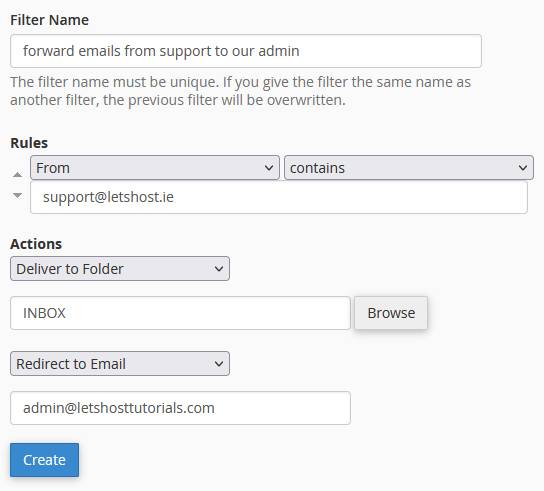
- Fail with message — The system discards the message and automatically sends a failure notice to the sender.
- Deliver to folder — The system delivers the message to a specified folder.
When you create a filter that uses several operators, the system processes the and operator before the or operator. For example:
— The system processes A or B and C as A or (B and C).
—The system processes A and B or C as (A and B) or C.
Example Filter Configurations
With this in mind, we recommend to deliver to a junk folder and then manually delete later.
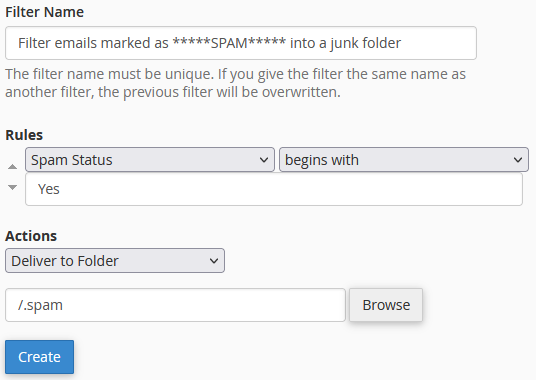
Filter emails marked as SPAM into a junk folder (instead of auto-deleting the email)
This filter will automatically move emails marked as spam by the cPanel Apache Assassin filter into a junk/spam folder instead of being delivered into the inbox or being automatically deleted. First, you will want to double-check that automatic delete is not enabled in the "Spam Filters" section in cPanel.
Filter Name: Descriptive of what the filter will do.
Rules: Click the drop-down arrows to change the settings.
Spam Status > begins with
Actions: Click the drop-down arrows to change the settings.
Deliver to folder, the text box will be blank by default, click Browse and navigate/choose the folder you want the mail to go into.
Click the Create button to save the filter.
Keyword ("Bitcoin") in the subject line
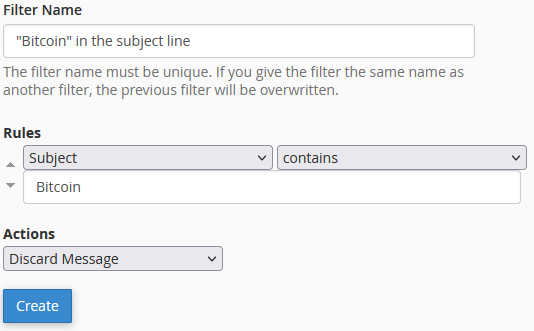
This filter will automatically delete email that "contains" the word "Bitcoin" in the subject line, you can substitute "Bitcoin" with any other keyword you like (case insensitive)
Filter Name: Descriptive of what the filter will do.
Rules: Click the drop-down arrows to change the settings.
Subject > contains
Actions: Click the drop-down arrows to change the settings.
Discard Message, this will automatically delete any mail that has the word Bitcoin in the subject line, you can change the action to "Deliver to folder" etc. if you do not want the mail to auto-delete.
Target sentence in the body of an email
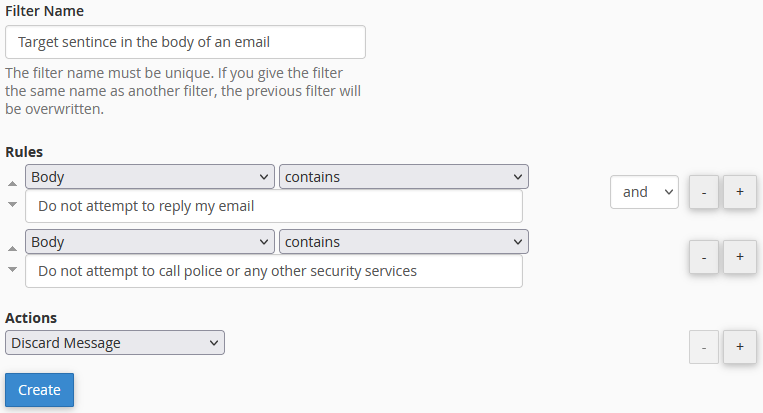
The filter works best for checking keywords but will allow you to check sentences, however, it is a rudimentary checker.
Here is an example excerpt from an actual spam mail:
"Do not attempt to reply my email (the email in your inbox was created by me together with return address).
Do not attempt to call police or any other security services."
The Filter can have issues processing special characters in sentences ( : , -, . , etc.) as such you should enter the following:
Filter Name: Descriptive of what the filter will do.
Rules: Click the drop-down arrows to change the settings.
Body > contains
Do not attempt to reply my email
And
Rules: Click the drop-down arrows to change the settings.
Body > contains
Do not attempt to call police or any other security services
Actions: Click the drop-down arrows to change the settings.
Discard Message, this will automatically delete any mail that contains both these sentences, you can change the action to "Deliver to folder" etc. if you do not want the mail to auto-delete.
Block a sender's IP/IP range or hostname
This filter will delete mail that is sent from a given IP address or IP address range.
You can find the IP address and hostname that an email was sent from by viewing the Email Headers ("Received: from" header)
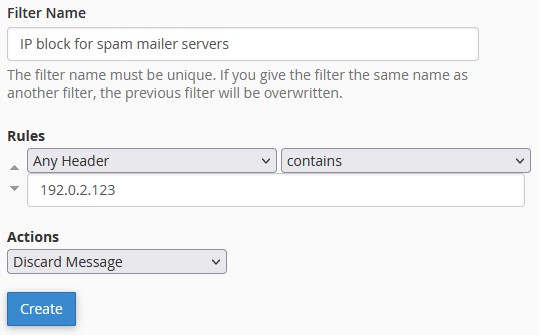
You can block a whole IP range as follows (e.g. 192.0.2.0 > 192.0.2.255):
If you require further information/assistance on this, please submit a ticket and a member of the team will be happy to assist further.